---
title: Platform components
tags: [Writing]
---
These components come with every wiki. Each one below is shown working, with the Forge Markdown that makes it underneath. Each wiki's **Components** page has them too, next to the wiki's own.
## Notice
A box the reader shouldn't miss: context, warnings, dangers.
:::notice[Balance changes]{warning icon}
Values change between seasons.
:::
```forge
:::notice[Balance changes]{warning icon}
Values change between seasons.
:::
```
`warning` and `danger` change the colour; `icon` adds an icon; `bold` makes the text stand out. Without a colour it's an information box.
## Spoiler
Hidden until the reader opens it. As a block:
:::spoiler[Season 6 ending]
The hidden part of the story goes here.
:::
```forge
:::spoiler[Season 6 ending]
The hidden part of the story goes here.
:::
```
Or inside a sentence, with one colon: the final boss is :spoiler[the narrator all along].
```forge
The final boss is :spoiler[the narrator all along].
```
## Tabs
Alternatives side by side, like platforms or game modes.
::::tabs
:::tab[Battle Royale]
Squads of three, last team standing wins.
:::
:::tab[Mixtape]
Rotating arena and objective modes.
:::
::::
```forge
::::tabs
:::tab[Battle Royale]
Squads of three, last team standing wins.
:::
:::tab[Mixtape]
Rotating arena and objective modes.
:::
::::
```
Each panel is its own `:::tab`, and the outer fence gets an extra colon so the two don't get mixed up.
## Infobox
Key facts beside the article, as a list of `Label: value` lines.
:::infobox[Dovetail joint]
- Family: Corner joint
- Slope: 1:6 to 1:8
- Strength: Mechanical lock
:::
```forge
:::infobox[Dovetail joint]
- Family: Corner joint
- Slope: 1:6 to 1:8
- Strength: Mechanical lock
:::
```
Most wikis soon make their own infoboxes, with a picture and exactly the fields they need: see [[Writing components]].
## Table
A table written as CSV (commas between cells), pasted straight from a spreadsheet, or as YAML. Number columns line up on the right.
:::table[Legends by class]{sortable}
Name, Class, Released
Gibraltar, Support, Season 0
Wattson, Controller, Season 2
Rampart, Controller, Season 6
:::
```forge
:::table[Legends by class]{sortable}
Name, Class, Released
Gibraltar, Support, Season 0
Wattson, Controller, Season 2
Rampart, Controller, Season 6
:::
```
- `{sortable}` turns the column headings into sort buttons (try it above).
- `{collapsed}` hides the table under its caption until it's opened.
- A cell that's just `<` joins the cell on its left, and `^` the cell above, for merged cells.
Ordinary Markdown tables work too, if you prefer them:
| Name | Class |
| --- | --- |
| Gibraltar | Support |
| Rampart | Controller |
```forge
| Name | Class |
| --- | --- |
| Gibraltar | Support |
| Rampart | Controller |
```
## Quote
A quotation, with who said it and where.
:::quote[Who said it]{source="Where they said it"}
The quoted words go here.
:::
```forge
:::quote[Who said it]{source="Where they said it"}
The quoted words go here.
:::
```
## Gallery
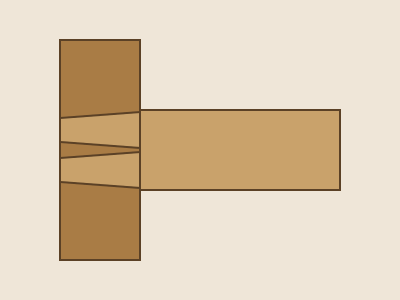
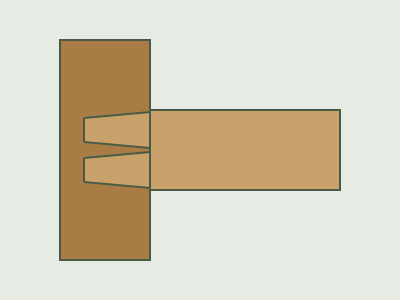
Several images side by side; the text in quotes becomes each image's caption.
:::gallery[Through and half-blind dovetails]
:::
```forge
:::gallery[Through and half-blind dovetails]


:::
```
See [[Images and files]] for uploading images.
## Album
Every image in one of the wiki's folders, in the same grid as a gallery, each captioned with its file's title. New uploads to the folder appear without editing the page.
```forge
::album[Every weapon]{folder=weapons}
::album[Latest screenshots]{folder=screenshots sort=newest limit=12}
```
- `sort=newest` puts the latest uploads first; otherwise they go by name.
- `limit` sets how many show (60 unless you say, at most 200); a link under the album leads to the rest.
## Screenshot
An image in a small browser window, with a drop shadow and room on both sides: for screenshots of a site or an app. The label is its caption, and `url` shows in the window's address bar (as text, not a link).
:::screenshot[The article editor]{url="apex.fanforge.wiki/a/k3v9qa/edit"}

:::
```forge
:::screenshot[The article editor]{url="apex.fanforge.wiki/a/k3v9qa/edit"}

:::
```
It holds exactly one image. Leave the image's alt text empty, as here, and it uses the file's own description.
## Diagrams
A code block marked `mermaid` draws a diagram: flowcharts, timelines, sequences and more.
```mermaid
flowchart LR
Idea --> Draft --> Review --> Published
```
````forge
```mermaid
flowchart LR
Idea --> Draft --> Review --> Published
```
````
## Your wiki's own
Wikis add components of their own: see [[Writing components]].
Version