Articles are written in Forge Markdown: standard Markdown plus what a wiki needs, namely links between pages, citations, components and emotes. If you know Markdown, you already know most of it. Open any page and choose Edit.
The editor works with you#
You don't need to remember the syntax, the names of pages or what files are called: the editor knows the wiki and offers them as you type. A new page starts at its title, with a short guide to the syntax where the text goes until you start writing.
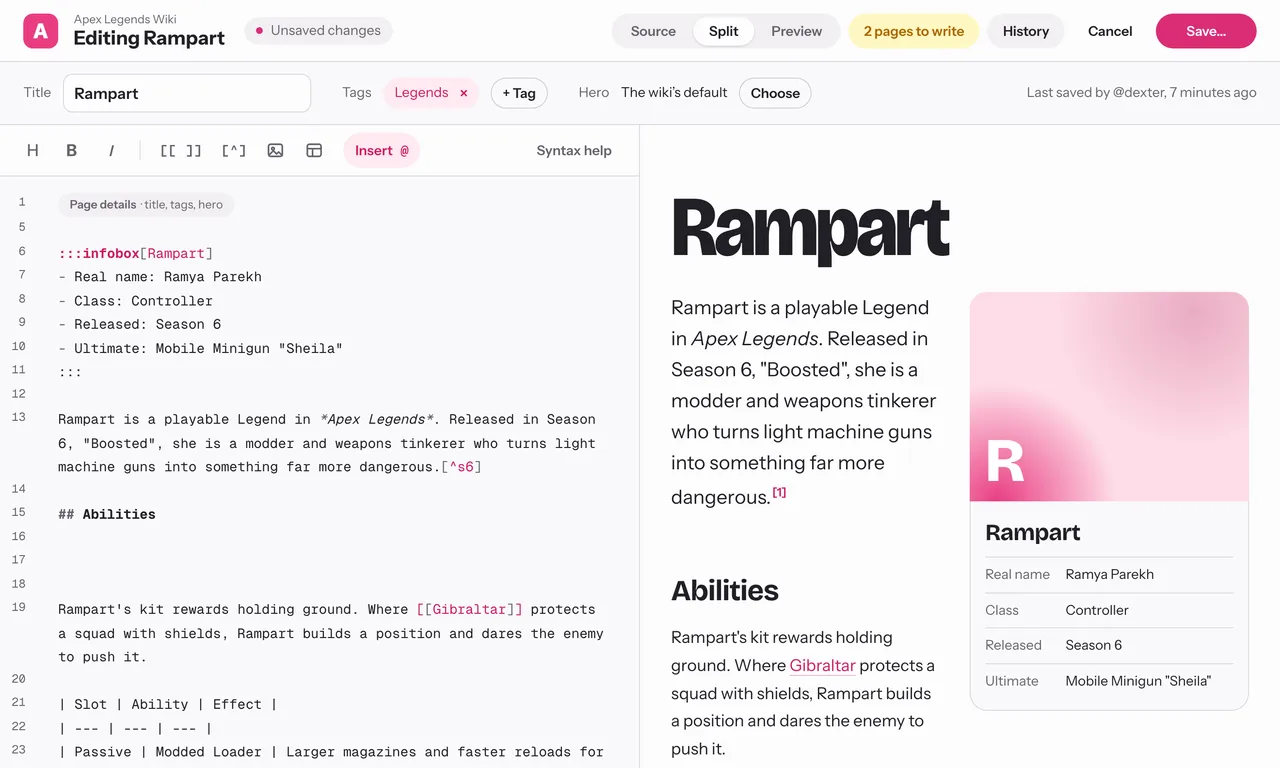
- Live preview. The page as readers will see it, hero and title included, next to the source, updated as you type, scrolling along with you. Source, Split and Preview switch between them; on a phone, Write and Preview.
- Page details as fields. Title, tags and the hero image sit above the text. They edit the page's frontmatter (see below), which stays in the text, folded to one line: change a field and the frontmatter changes, edit the frontmatter and the fields follow.
@for anything. New to Markdown? Type@at the start of a line (or after a space), or choose Insert @, for a list of what can go in a page: the wiki's own components first, then headings, bold, links, an image, lists, a table, a citation, and every platform component, each with what it's for and an example. Pick one and it's written for you, with the cursor where you type next (Tab moves on).- A toolbar for the common ones: headings (three levels, or back to plain text), bold, italic, a link, a citation, an image, and a table (a Markdown table, or the table component, which takes CSV or rows pasted from a spreadsheet). Syntax help is a one-card guide. On a phone, a writing bar sits above the keyboard.
- Shortcuts. With Ctrl (⌘ on a Mac): B bold, I italic (press again to undo either), K a link, Alt+2 to Alt+4 headings, Alt+0 plain text, S save.
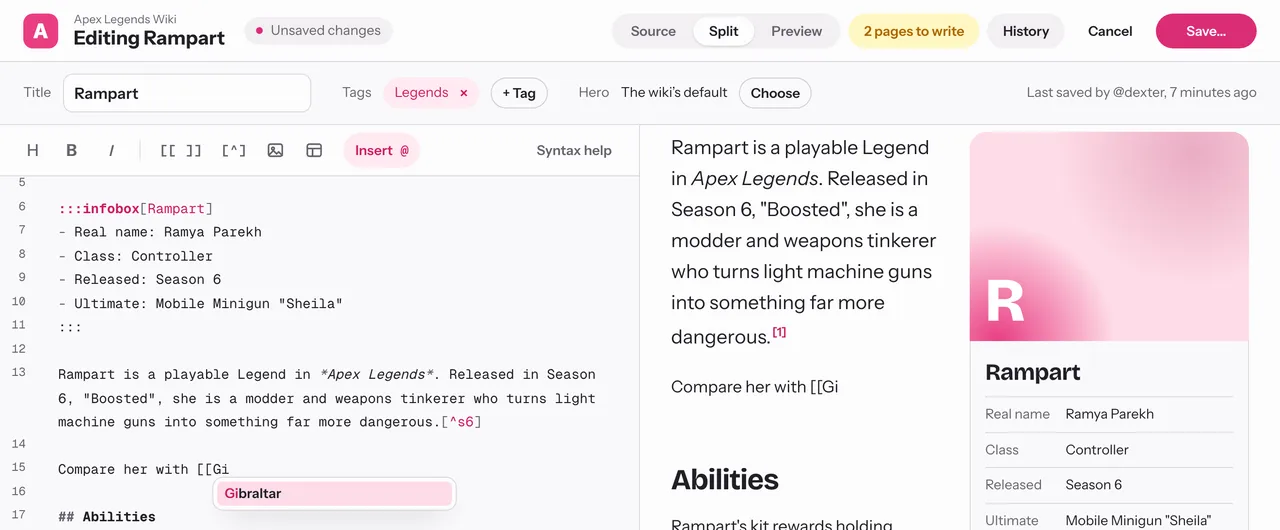
- Completions everywhere. Type
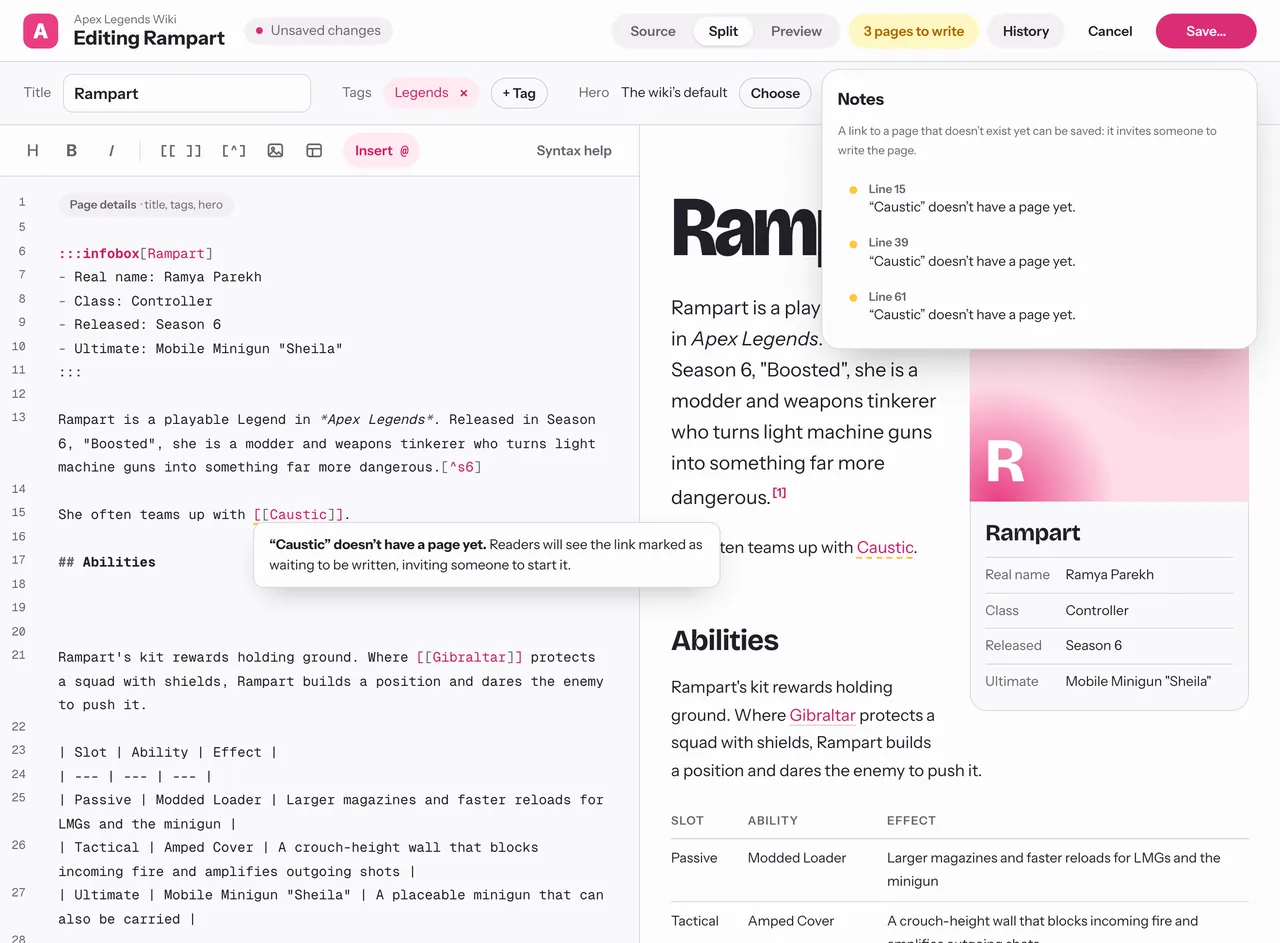
[[for the wiki's pages,media:for its files (folders first),:::for components with what each one is for,:for emotes with a picture of each, and a blank line at the top for the frontmatter's fields, thentags: [for the tags the wiki already uses. - Notes as you type. A file that isn't uploaded, a component that doesn't exist or is given the wrong kind of value, a citation without a source: each is underlined where it happens, and the note shows under the line when the cursor is on it. One count in the bar opens the whole list. Errors stop a save; warnings don't.
- Pages still to write. A link to a page that doesn't exist yet is a warning, with a dashed yellow underline, and it can be saved: readers see it the same way, as an invitation to write the page. When those are all the notes, the count says so ("2 pages to write").
- Images without leaving. The image button picks one of the wiki's files or uploads a new one; or drop or paste images into the text. They go in at the cursor.
Save… (or Ctrl/⌘ + S) shows what changed and asks for a short summary of what you changed and why; then Save page. If you're new on the wiki, it also says whether a trusted editor will look at your edit before it appears.
Unsaved changes are kept in your browser as you type, so a crash or a closed tab doesn't lose them: open the editor again and it offers them back (Restore or Discard). They're only offered on top of the version you started from, never over someone else's newer edit, and they're dropped after a week, when you save, or when you press Cancel. The component and Wiki Data editors do the same.
The top of the page#
Every article starts with a short block between --- lines, its frontmatter. The Title, Tags and Hero fields above the editor write it for you, and the block itself is folded to one Page details line; open it to see or change the rest:
---
title: Dovetail joint
tags: [Joinery, Hand tools]
todo: [Needs photos]
---
titleis required; it's the page's name and heading.tagslist the topics the page belongs to. See Tags and to-dos.todonotes what the page still needs, for editors only.slug(optional) sets the end of the page's address; it's made from the title otherwise.hero(optional) is an uploaded image shown behind the title, ornonefor a plain header.
Text#
The usual Markdown: **bold**, *italic*, ## headings (each ## heading appears in the page's contents), lists, > quotes, `code`, links like [text](https://example.com), and pipe tables. Raw HTML isn't allowed; it's shown as text.
Links between pages#
Write a page's title in double brackets: [[Dovetail joint]]. Give it different text with a bar: [[Dovetail joint|dovetails]]. A link to a page that doesn't exist yet has a dashed yellow underline: it's not a mistake, it invites someone to write the page, and clicking it starts it. Links are stored by the page's id, so renaming a page never breaks them.
Citations#
Put [^key] after a claim and define it anywhere on the page:
Rampart was released in Season 6.[^s6]

[^s6]: Apex Legends patch notes, Season 6 (August 2020).
Sources appear as a numbered References section at the end. [^] on its own marks a claim that needs a source.
Components#
Components add structure: infoboxes, notices, tabs, galleries, spoilers, tables and the wiki's own. They're written as fenced blocks:
:::notice[Before you start]{warning}
Sharpen the chisel first.
:::
See Platform components for the built-in ones, and the wiki's Components page (in the sidebar's Help) for all of them, with examples to copy.
Images#
Upload images on the Files page, or straight from the editor with the image button (or by dropping or pasting them into the text), then write . See Images and files.
Emotes#
:name: shows one of the wiki's emotes in a line of text, like a small inline picture. Trusted editors add them on the Emotes page.